Three tools live in the top-right toolbar: distance, elevation profile and area. They work independently of a simulation, so you can use them any time.
Distance, elevation profile and area, in the top-right toolbar.
Distance & bearing
Pick the distance tool, then click two points. Waveshed draws the line and labels it with the great-circle distance and bearing. Press Esc to cancel.
Area
Pick the area tool, click to drop vertices, and double-click to close the polygon. The label shows the enclosed area (m², hectares or km² as appropriate).
Elevation profile
Pick the elevation profile tool and click two points. A chart panel opens showing the terrain cross-section between them:
LOS view, the terrain (with the earth-curvature bulge) and the straight line-of-sight ray between the two antenna tops, so you can see exactly where a ridge breaks the path.
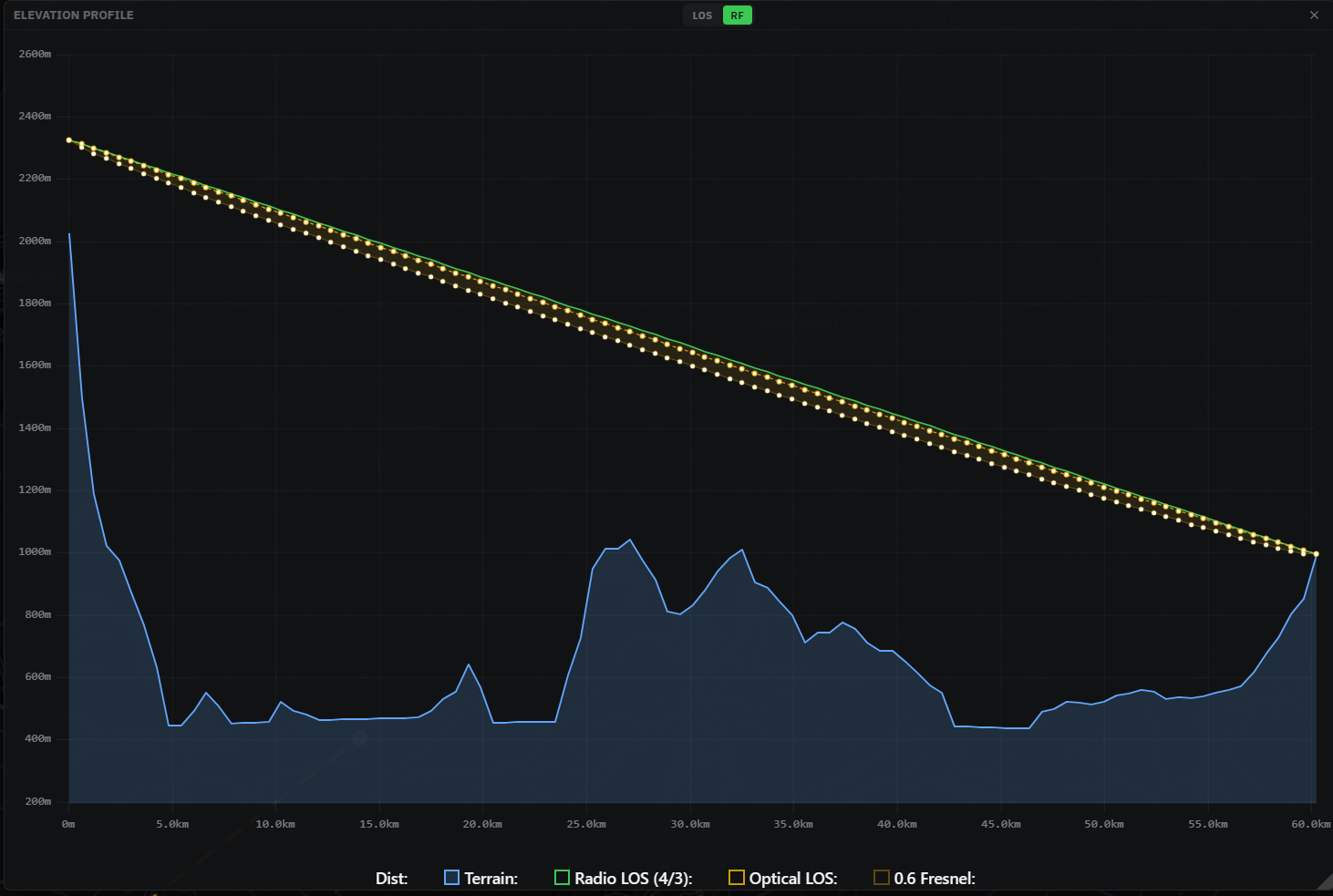
RF view, adds the radio horizon (4/3-earth refraction) versus the optical ray, and shades the 0.6× first Fresnel zone so you can check clearance, not just line of sight.
Toggle LOS / RF in the panel header (independent of the main mode). Scroll or pinch to zoom, drag to pan, double-click to reset, and close with ×.
The profile chart: terrain, the sight line, and (in RF) the Fresnel-zone clearance.