← Help 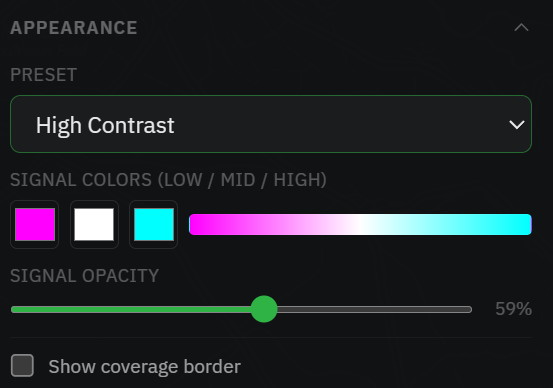
Presets plus per-colour control, opacity, and an optional outline.
Results: colours & export
Once a run completes you can restyle the overlay for clarity and take the result out of the browser.
Colours & outline
Open the Appearance section. Start from a colour Preset: Default, High Contrast or Colorblind (editing any colour switches it to Custom):
- In LOS mode you set the single LOS colour and its opacity.
- In RF mode you set signal colours (low / mid / high) and signal opacity.
- Show coverage border draws an outline around the covered area. Expand it to set the stroke colour and width.
A legend on the map shows what the colours mean: Visible / Blocked in LOS, or a signal-strength scale in dBm for RF.
Export
When a run has finished, the panel footer offers three formats:
- PNG: a plain image of the result.
- TIFF: a georeferenced GeoTIFF for QGIS / GDAL and other GIS tools.
- KMZ: for Google Earth.
Reset clears the result so you can run again.