Map styles & the 3D view
The basemap is yours to choose, and one of the styles drops you into a tilt-able 3D terrain view you can fly around with the keyboard.
Switching basemaps
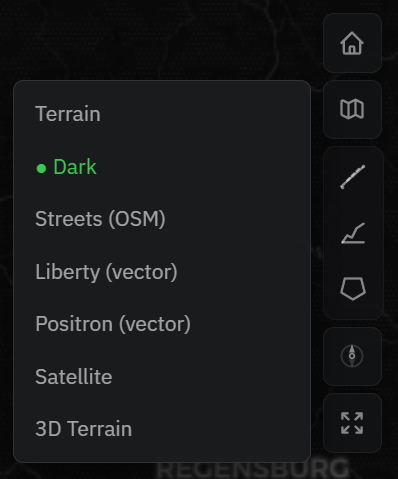
Use the map-style button in the top-right toolbar to open the list. The active style is marked. The options are Terrain, Dark, Streets (OSM), Liberty (vector), Positron (vector), Satellite and 3D Terrain. Pick Satellite for aerial imagery, or Dark/Positron for a low-clutter base that makes the coverage overlay pop.
The 3D terrain view
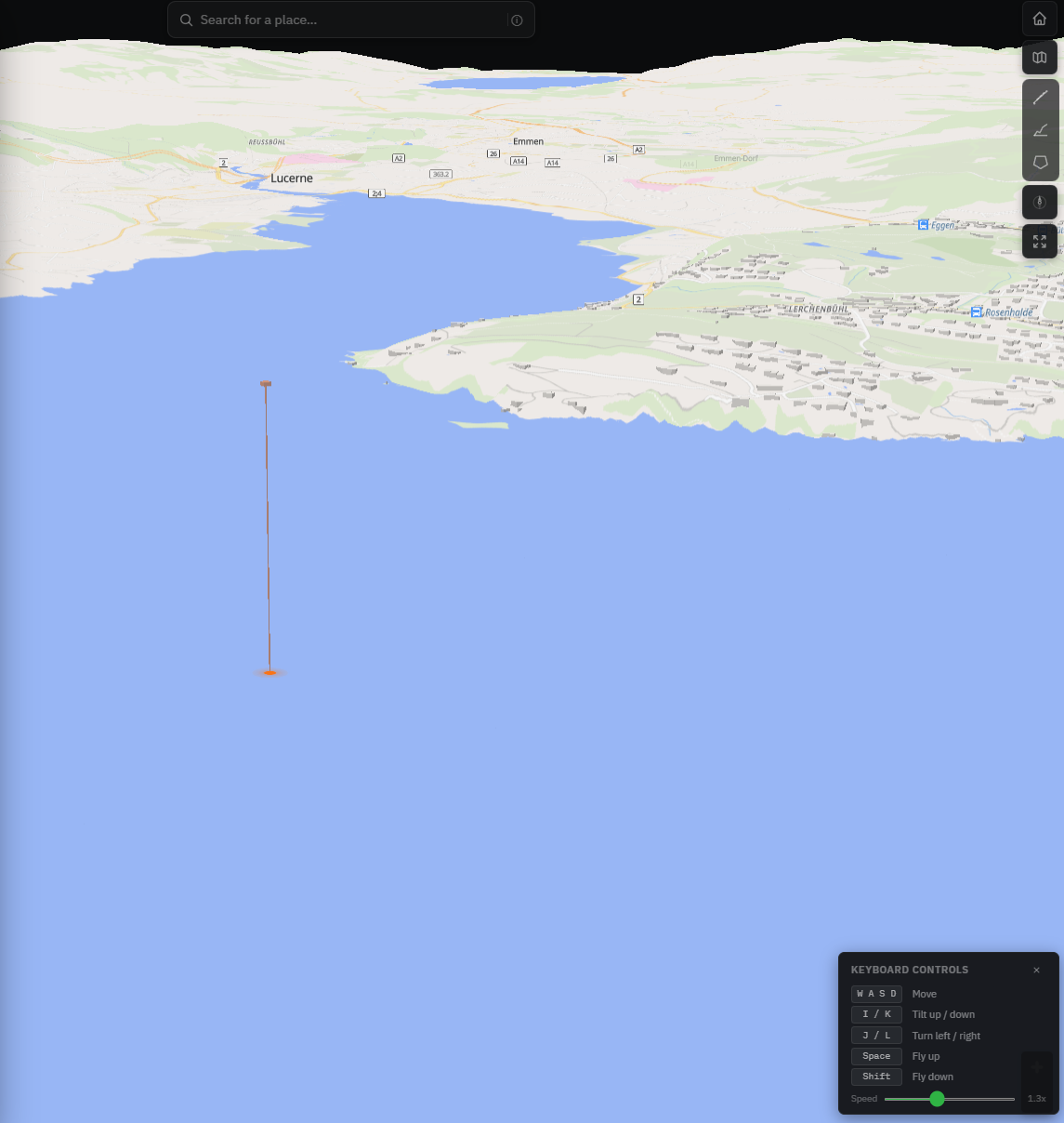
Choose 3D Terrain to tilt into a three-dimensional landscape (with vertical exaggeration so relief is easy to read). Right-drag, or a two-finger drag on a touchscreen, to tilt and rotate the camera. The flat styles stay north-up and level, and only 3D Terrain tilts.
Flying around (keyboard)
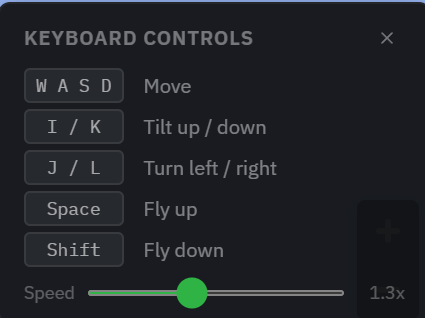
In 3D, an on-screen guide shows the first-person controls:
- W A S D, move (forward / left / back / right)
- I / K, tilt up / down
- J / L, turn left / right
- Space, fly up · Shift, fly down
- A Speed slider (≈0.2 to 3×) adjusts how fast you move
Dismiss the guide with its close button, and it stays hidden next time.