Plan radio coverage (RF / ITM)
Where a line-of-sight viewshed shows what is visible, RF mode estimates signal strength over the terrain, for repeaters, point-to-point links, WISP planning and antenna siting. Here is the workflow.
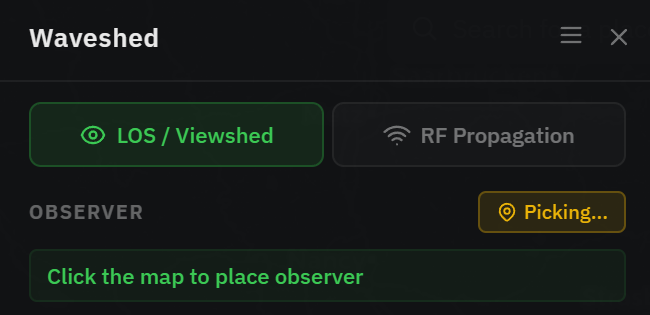
1. Switch to RF
Click RF Propagation at the top of the control panel. The point becomes a Transmitter and the heights relabel to TX height / RX height. RF (ITM) is computed by the WASM engine, on the GPU when available, otherwise on the CPU. It works without a dedicated GPU, just more slowly. The button is unavailable only if that engine cannot load in your browser, which leaves you the LOS viewshed.
2. Set the RF parameters
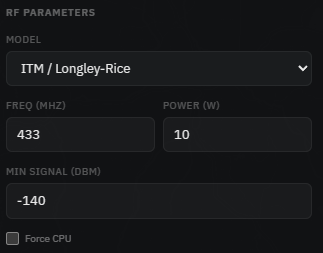
An RF Parameters section appears:
- Model, ITM / Longley-Rice, the irregular-terrain model used for real-world coverage. (Free Space Path Loss is listed as coming soon.)
- Freq (MHz), your operating frequency (e.g. 145, 433, 868).
- Power (W), the effective radiated power (ERP). You can also switch to transmitter power plus antenna gain and let Waveshed combine them.
- Min signal (dBm), the weakest signal to map. Anything below this is not drawn.
3. Heights, range & run
Set TX height (your antenna) and RX height (the receiving antenna), usually AGL. Choose a range and resolution and press Run Simulation. The overlay is now coloured by signal strength (low → high). Recolour or export it from the Appearance section.